Connect Claude to your site with MCP
About fifteen minutes, once per site. At the end of it you can ask Claude - on your own machine, in its own window - to build a form on your WordPress site, and watch the published page appear. Nothing about your site is sent to a form service: Claude connects to your site over its REST API, as a WordPress user you can revoke at any time.
:::tip Two different things with similar names This guide connects an outside assistant (Claude Desktop) to your site over MCP. It works with the free LocalForm plugin.
If what you want is a panel inside wp-admin, that is Build with AI - a Pro feature that needs no MCP client, no bridge and no Application Password. The two drive the same three abilities and you can run both. :::
Before you start
| You need | Why |
|---|---|
| WordPress 6.9 or newer | The Abilities API ships in core from 6.9. Below that, LocalForm registers nothing |
| The MCP Adapter plugin | Turns registered abilities into MCP tools. Step 1 |
| An Administrator account | All three abilities require manage_options, the same permission the form builder needs |
| Node.js on your own machine | Runs the bridge in step 3. Nothing is installed permanently |
1. Install the MCP Adapter
The adapter is not in the WordPress.org plugin directory - it is published on GitHub, so you install it by uploading a zip.
Download the mcp-adapter.zip attached to the latest release, then upload it under Plugins → Add Plugin → Upload Plugin and activate it.
:::danger Take the release zip, not the source
The green Code → Download ZIP button on the repository gives you a Composer source checkout with no vendor/ directory. That version activates without complaining and then does nothing at all - no endpoint is registered, and the only sign of trouble is a line in your PHP error log:
MCP Adapter: The Composer autoloader was not found. If you installed the
plugin from the GitHub source code, make sure to run `composer install`.
If the steps below end in a 404, this is almost always why. Download the release asset instead. :::
With it active alongside LocalForm you should see both:
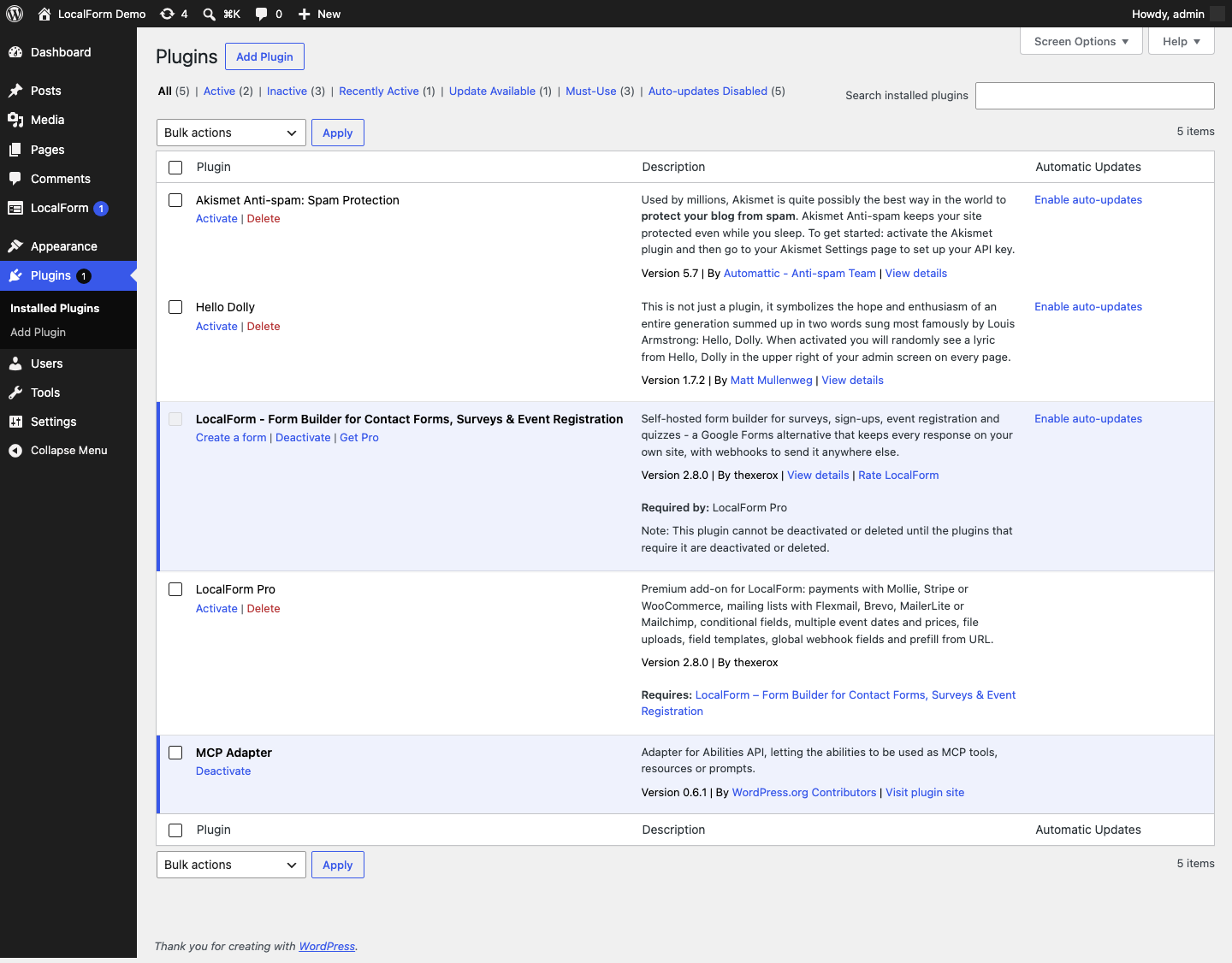
You can confirm the endpoint exists by opening https://example.com/wp-json/ and looking for mcp in the namespaces list. No mcp there means the adapter is not running, and nothing below will work.
2. Create an Application Password
This is how Claude signs in. It is not your login password, it only works for API requests, and you can revoke it on its own without changing anything else.
Go to Users → Profile, scroll to Application Passwords, and enter a name you will recognise later:

Select Add Application Password. The password is shown once, and there is no way to see it again - copy it now:
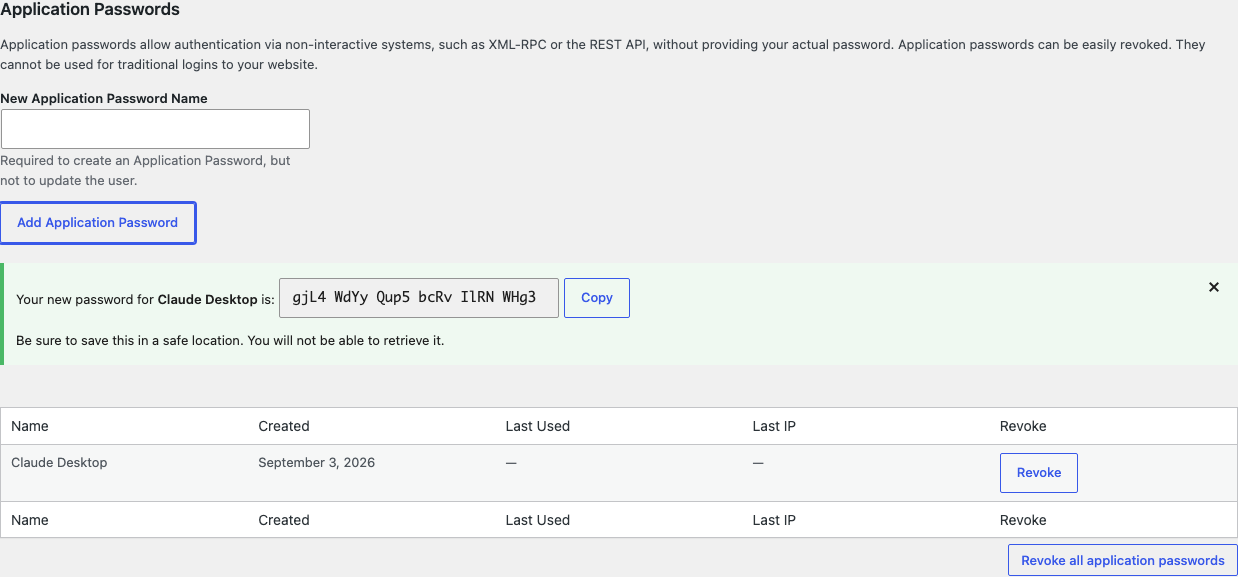
The spaces are part of it; paste it exactly as shown.
:::note Not seeing the section at all?
WordPress hides Application Passwords on a site served over plain http://. Use HTTPS - or, on a local development site, set WP_ENVIRONMENT_TYPE to local in wp-config.php. A security plugin such as Wordfence can also disable the feature outright.
:::
3. Point Claude Desktop at your site
Claude Desktop talks to programs on your machine rather than to URLs, so a small bridge forwards to your site: @automattic/mcp-wordpress-remote. There is nothing to install - npx fetches it the first time it runs.
Open Settings → Developer → Edit Config, which opens claude_desktop_config.json:
- macOS:
~/Library/Application Support/Claude/claude_desktop_config.json - Windows:
%APPDATA%\Claude\claude_desktop_config.json
Add a localform entry. If the file already has an mcpServers block, put the entry inside it rather than replacing it:
{
  "mcpServers": {
    "localform": {
      "command": "npx",
      "args": ["-y", "@automattic/mcp-wordpress-remote"],
      "env": {
        "WP_API_URL": "https://example.com/wp-json/mcp/mcp-adapter-default-server",
        "OAUTH_ENABLED": "false",
        "WP_API_USERNAME": "your-wordpress-username",
        "WP_API_PASSWORD": "xxxx xxxx xxxx xxxx xxxx xxxx"
      }
    }
  }
}
Two things that catch people out:
WP_API_URLis the full endpoint path, not just your site address. It ends in/wp-json/mcp/mcp-adapter-default-server.OAUTH_ENABLED: "false"is what makes the bridge use the Application Password. Leave it out and it tries an OAuth flow instead and never authenticates.
Then quit Claude Desktop fully - closing the window is not enough - and reopen it.
4. Ask for a form
The localform server appears under the tools icon in the message box. Ask for something real:
Make a registration form on my site for a two-day workshop on 12 and 13 August, ask which days people are coming, and charge €25, or €15 for students.
Claude discovers the abilities, builds the form, sets the event details, and hands back the URL of the published page.
Ask for more than feels necessary. A request that names the questions you want produces a better form than three vague ones, and rewording is cheaper than rebuilding.
If the tools do not appear
| What you see | Usually means |
|---|---|
| The server is missing entirely | Invalid JSON in the config - a trailing comma or a missing brace |
404 / rest_no_route | The adapter is not running. Almost always the source zip instead of the release zip - see step 1 |
401 in the logs | The Application Password did not reach PHP. See below |
Missing Mcp-Session-Id | Something is calling the endpoint directly instead of through the bridge |
Tools appear, but is not exposed via MCP | The site is running an older LocalForm. Update it |
Claude Desktop writes per-server logs to ~/Library/Logs/Claude/ (macOS) or %APPDATA%\Claude\logs\ (Windows).
A stubborn 401 with a password you know is right is usually the host rather than the config: many Apache and CGI setups drop the Authorization header before PHP sees it. Adding this to .htaccess fixes it:
SetEnvIf Authorization "(.*)" HTTP_AUTHORIZATION=$1
What it can and cannot do
The assistant gets exactly three abilities - list forms, read a form, create or update a form. It cannot delete a form, read a submission, or touch anything else on your site. Everything it saves goes through the same validation as the builder, so it cannot create something you could not have built by hand, and reconfiguring an existing form never discards the responses already collected.
Revoke its access at any time from the same Users → Profile screen; nothing else about the user changes.
Next
- MCP reference - the three abilities in detail, the full form shape an assistant reads and writes, and the rules about field ids, event dates and prices.
- Build with AI - the same three abilities, driven from inside wp-admin, on Pro.