Send submissions to another system
Fifteen minutes. Every accepted submission is POSTed to a URL you choose, as JSON - to a CRM, a payment flow, an automation tool, or a backend of your own. Deliveries are queued and retried, and every attempt is logged.
This page is the part that is true wherever you send it. Three destinations then have a walkthrough of their own, and assume you have read this one:
| Power Automate | Zapier | n8n | |
|---|---|---|---|
| Cost | Premium licence per user or per flow | Paid plan, one task per submission | Free and self-hosted, or paid cloud |
| Runs on your own infrastructure | No | No | Yes, if you self-host |
| Can verify the signature | No - no hashing function | With a Code step | Yes |
| Can redirect the visitor onward | Yes, with a Response action | No | Yes, with a Respond to Webhook node |
| Best at | Microsoft 365, SharePoint, Dataverse, approvals | The long tail of SaaS apps | Anything, if you are willing to build it |
Make, Activepieces, n8n's self-hosted rivals and a hand-written endpoint all work the same way; the mechanics below are all any of them need.
1. Have a URL ready to receive it
Whatever is going to listen needs a public HTTPS endpoint that accepts a POST with a JSON body. In an automation tool that means creating a webhook trigger and copying the URL it gives you.
The body looks like this:
{
	"form_id": 12,
	"form_title": "Summer BBQ registration",
	"submission_id": 345,
	"timestamp": "2026-07-23T10:00:00+00:00",
	"event_date": "2026-09-01",
	"event_time": "18:30",
	"event_location": "The Old Brewery",
	"event_organizer": "Social Committee",
	"payment_price": 25.0,
	"fields": { "name": "…", "email": "…" },
	"custom_fields": { "any": "key-value pairs from the form's Custom Fields panel" }
}
The keys inside fields are the database field names from the builder, not the labels - first_name, not "What is your first name?". Check them in the ⋯ menu on each question card before you build anything on the receiving end, and settle on them now: renaming a field later renames its key here too.
2. Point the form at it
Open the form, go to the General panel, and paste the URL into Webhook URL.
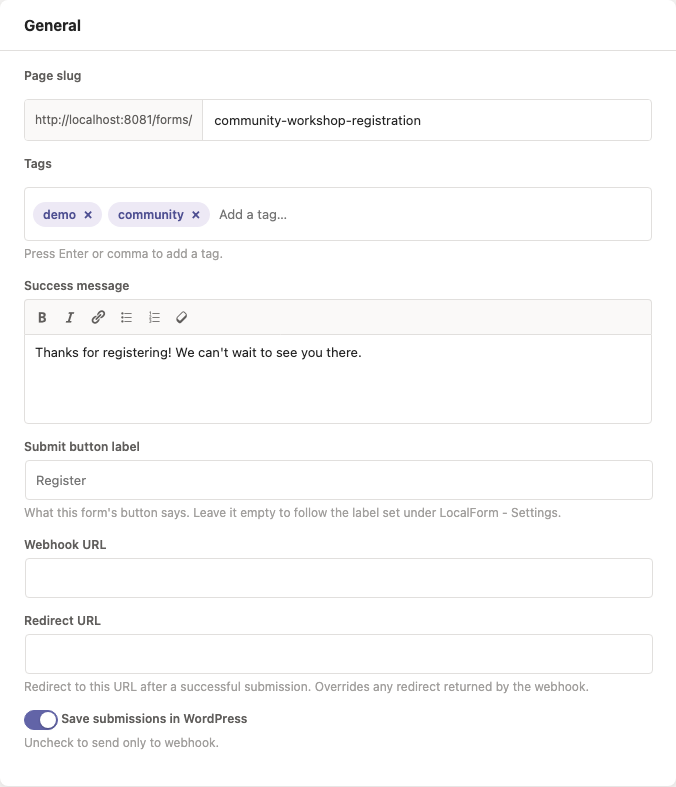
For a site where most forms go to the same place, set a fallback under LocalForm → Settings → Webhooks instead - it is used by every form without its own URL.
No Webhook URL field in the panel? The form is in light mode, which hides it along with the redirect URL and the custom fields. Switch Light mode off in the same panel - an address already saved keeps delivering either way.
Two things about the address itself, both of which bite self-hosted receivers: http:// is accepted as well as https://, and an https:// address with an invalid or self-signed certificate is rejected - certificate verification is on and cannot be turned off from the settings. A private or LAN address (http://192.168.1.50:5678) is fine, as long as the machine running WordPress can reach it.
3. Submit a test and read the log
Submit the form once yourself, then go to LocalForm → Settings → Webhooks → Logs. Every attempt is there with the payload sent, the response code and the response body, kept for 30 days.
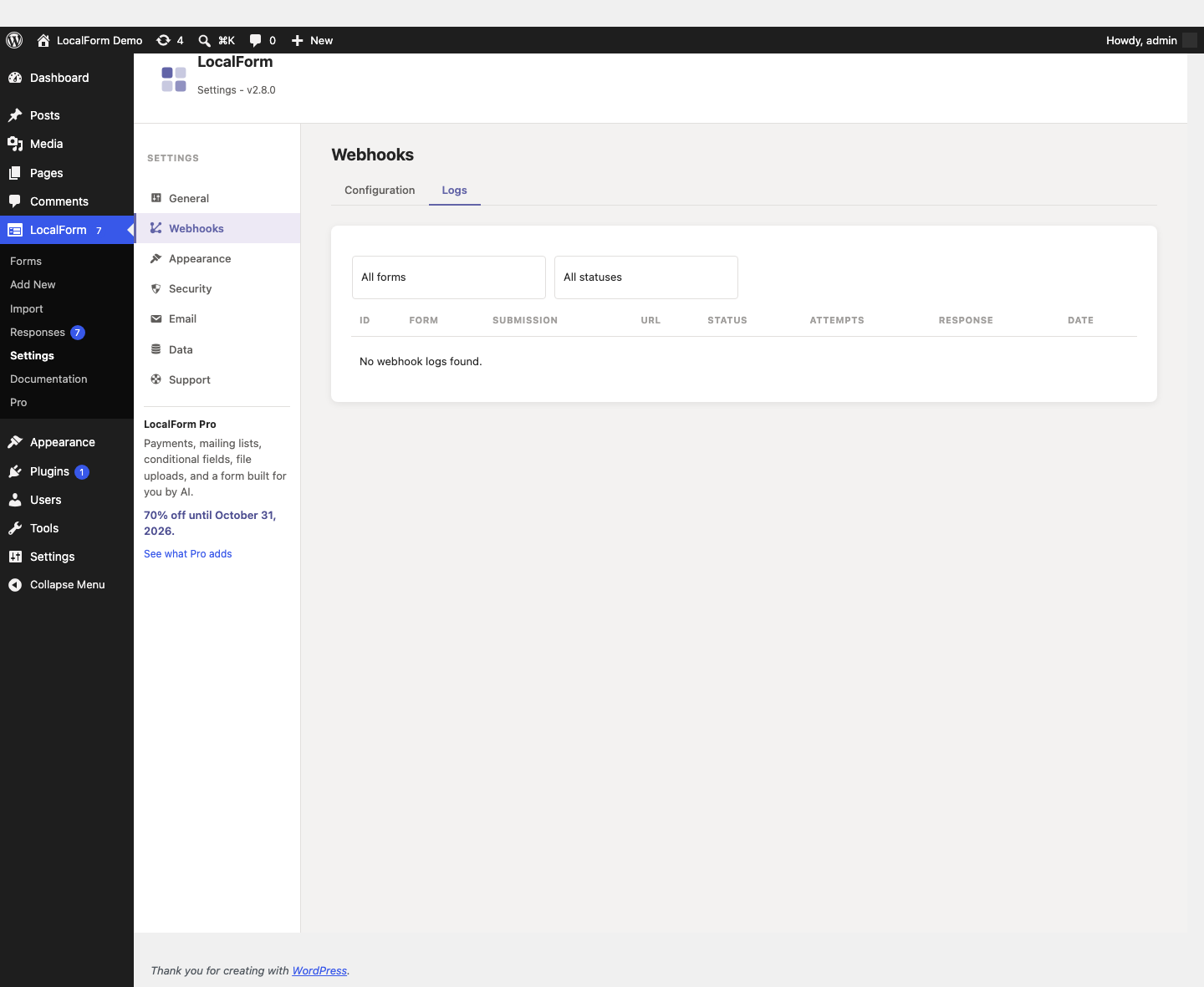
This is where you debug, not in the receiving tool. Delivery is queued through WP-Cron and retried up to three times with backoff (immediately, after 1 minute, after 5 minutes), so a failure here is a real failure and not a timing accident.
Nothing in the log at all? WP-Cron on a quiet site only runs when someone visits it. Load a page and look again.
4. Sign the requests
Anyone who learns your endpoint URL can post to it. Set a Webhook Secret Key under LocalForm → Settings → Webhooks, and every request carries an X-LocalForm-Signature header - an HMAC-SHA256 of the JSON body - which the receiver checks before trusting anything.
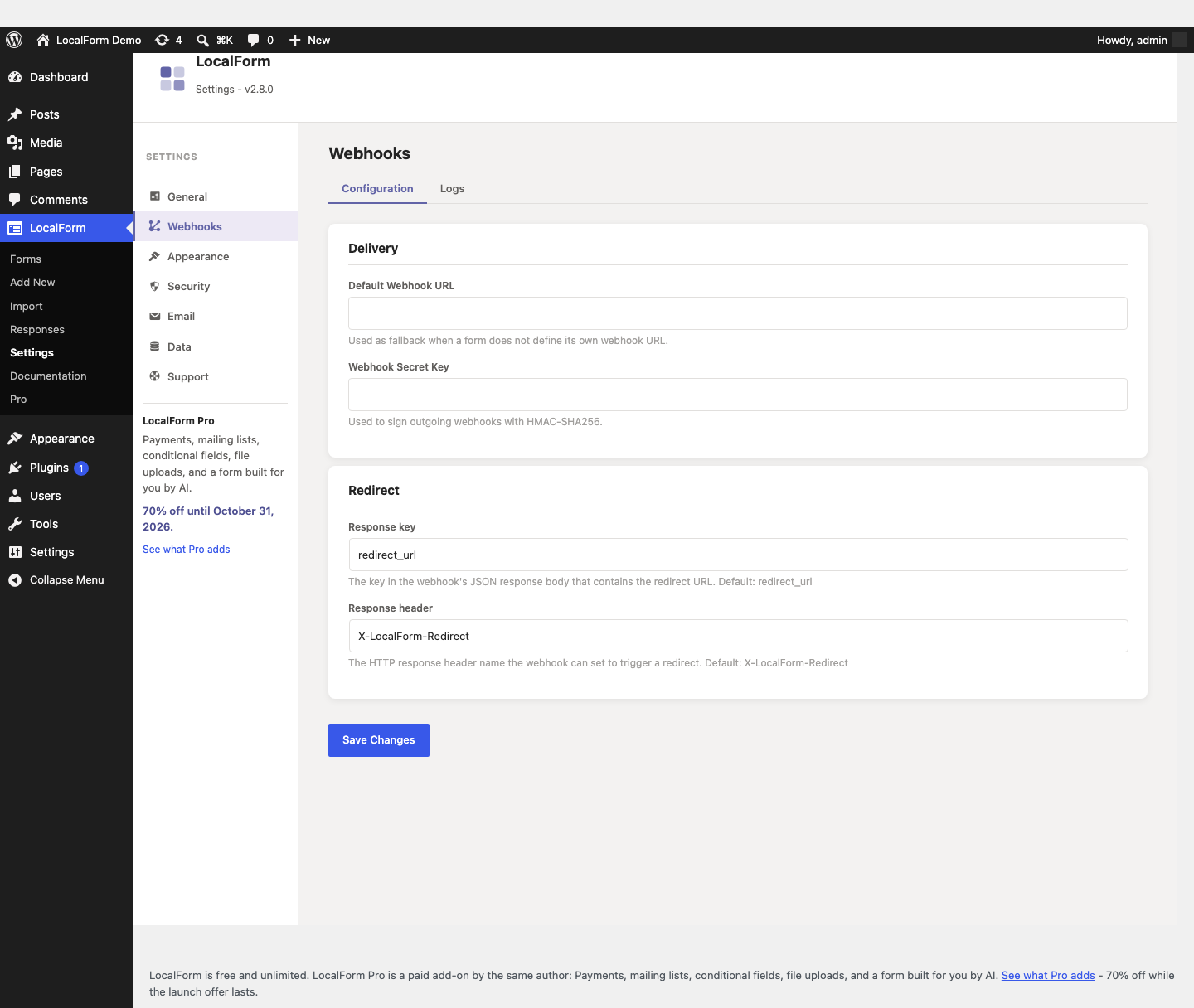
Worth doing on anything that creates records, charges money, or emails a stranger. Verifying it has the receiving code, in PHP and in Node.
A hosted automation tool may not be able to do that check at all (Power Automate has no hashing function; Zapier hides the headers from ordinary steps). Where the signature is out of reach, the substitute is a shared secret inside the payload: add a key such as shared_secret with a long random value in the form's Custom Fields panel - or, on Pro, as a Global Webhook Field so every form carries it - and have the first step of the automation drop anything whose value does not match. It is a bearer secret rather than a signature, so whoever holds it can replay a request, but it stops a stranger who has only the URL.
5. Send along what the form does not ask
Some things the receiving system needs are not questions for the visitor - which site sent this, which campaign, which cost centre.
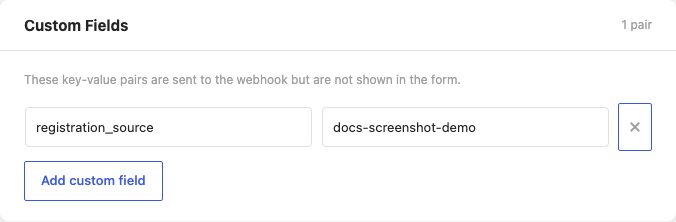
- Custom Fields (per form, in the form's settings) ride along in
custom_fieldson that form's payload only. - Global Webhook Fields (Pro, LocalForm → Settings → Webhooks → Fields) are merged into every form's payload. A per-form custom field wins over a global one with the same key.
Duplicates, and the key that fixes them
A delivery that fails is retried up to three times, and the receiver sees each attempt that reaches it. So a receiver that answers too slowly - LocalForm waits 15 seconds - can be counted as failed and posted to again, having already done the work the first time. One registration, two rows in the spreadsheet.
submission_id is the same value across all three attempts, which makes it the thing to deduplicate on: look it up before you write, or store it as a unique key and let the second write fail harmlessly. Anything that creates records, charges money or emails someone is worth making idempotent this way, and it costs one lookup.
The other half of the fix is answering quickly. Acknowledge with a 2xx first and do the slow work afterwards, rather than holding the request open through an approval or a rate-limited API.
Sending the visitor onward
For a payment checkout, the endpoint can decide where the visitor lands: respond with an X-LocalForm-Redirect header, or a redirect_url key in the JSON response, and LocalForm sends them there after submitting.
A Redirect URL set on the form itself always wins over one returned by the endpoint - which makes it the thing to check first when a redirect is not going where you expect.
Webhook-only mode
Unchecking Save submissions in WordPress in the General panel skips local storage entirely: nothing under Responses, and submission_id arrives as null. Emails still go out.
Two things to know before you turn it off:
- Maximum registrations stops working. The cap counts saved submissions, and there are none. If you need a capacity limit, keep saving locally.
- A failed delivery is a lost registration. With local storage on, the log tells you what to re-send by hand; without it, three failed retries and the submission is gone.
The full payload reference, including the Pro event_dates and payment_prices arrays, is in webhooks.