Integrations (Pro)
LocalForm → Settings → Integrations is where this site connects to the services it already uses: payment providers, and the mailing lists a form can add a subscriber to.
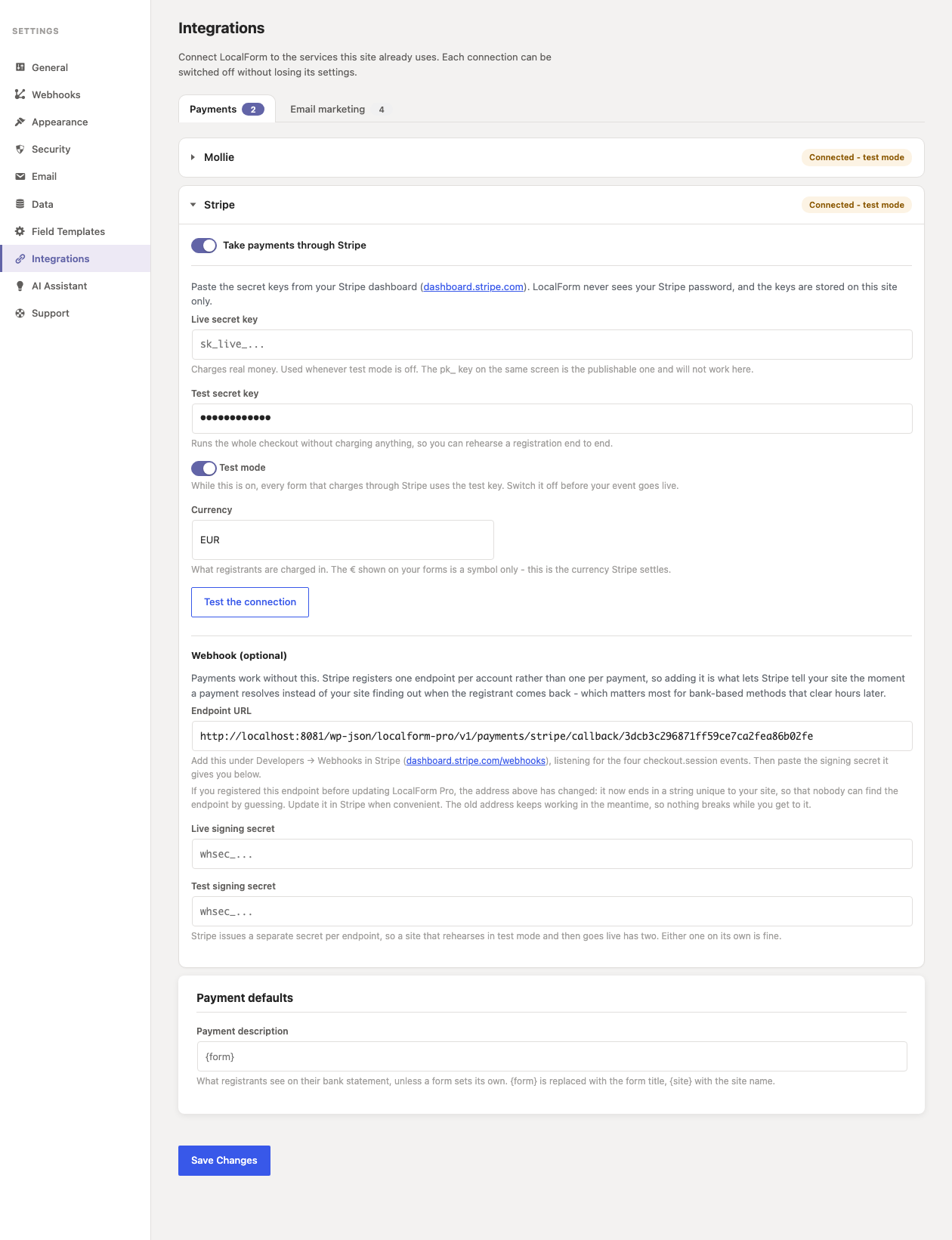
Every connection works the same way. You paste a credential, press a button that tells you whether it worked, and decide whether the connection is live. (WooCommerce is the exception that proves it: there is nothing to paste, and its card appears only on a site that has WooCommerce installed.)
:::info Moved from Settings → Payments
This screen used to be called Payments, and held Mollie alone. Old links
and bookmarks still work - ?section=payments redirects here - and nothing you
had connected needs reconnecting.
:::
How the screen is laid out
Connections are grouped by what kind of thing they are, and each group is a tab across the top of the screen:
| Tab | What is in it |
|---|---|
| Payments | The providers that can charge for a registration - Mollie, Stripe and WooCommerce. |
| Commerce | Shops and catalogues. Empty for now. |
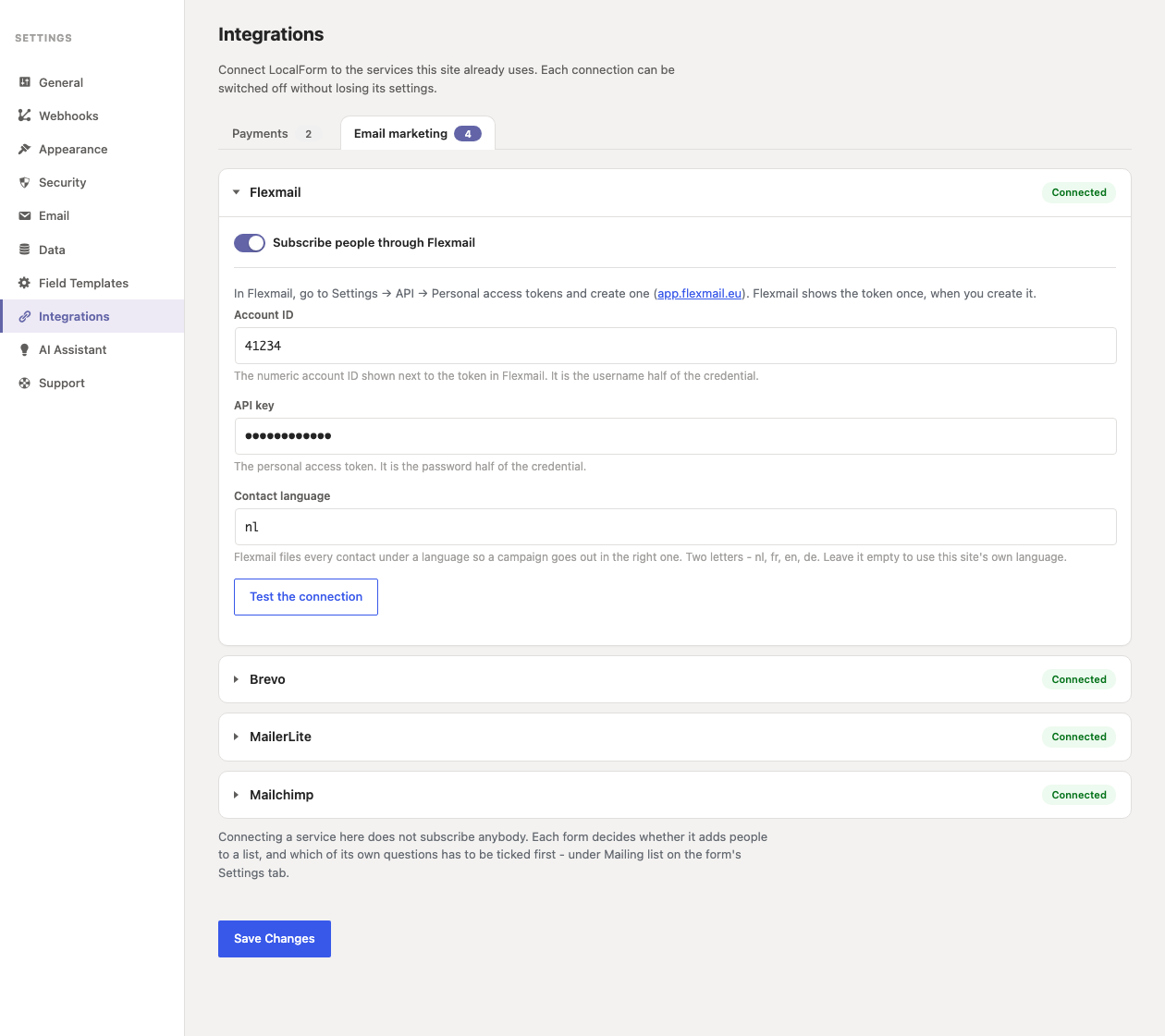
| Email marketing | The services a form can add a subscriber to - Flexmail, Brevo, MailerLite and Mailchimp. |
| Automation | Platforms that act on a response. Empty for now. |
A group with nothing in it is not shown at all, so the screen only ever lists what this site could actually use. The tab bar appears once there is more than one group to choose between; with a single group you get the plain list.
Each connection is a card you can fold away. Open the one you came to change and the rest stay out of the way - which matters more the more of them there are. A card that is switched off starts collapsed.
Tabs do not split the form
Everything on the screen is still one form with one Save Changes button at the bottom, however many tabs you touched. Switching tab does not reload the page and does not lose what you typed under the previous one: change a Stripe key, switch to Email marketing, paste a Brevo key, and press Save once.
The tab you were on is where the save brings you back to, and each tab has its own address - so you can bookmark or link straight to the one you need. With JavaScript off, the tabs are ordinary links and every group is simply listed down the page, as it was before.
The on/off switch
Every connection carries a switch, and it means exactly what it says.
Switched off, the connection is not used. A payment provider that is off is not offered in the form builder, is not listed as a choice, and cannot start a new payment - even with perfectly good API keys saved. A form set to charge through it simply stops charging and behaves like an ordinary registration form. A mailing list service that is off subscribes nobody, including for a retry that was already queued.
Switched off, nothing is lost. Your keys, your currency, your test-mode setting all stay exactly where they were. Switching the connection back on picks up where you left off. That is the whole point of the switch: parking an integration should not mean deleting your credentials and hunting for them again in three weeks.
:::note Payments already taken still complete Switching a provider off stops the next payment. It does not abandon one already in flight. A registrant who was at the checkout when you flipped the switch still comes back to a confirmation, their payment is still read back from the provider, their confirmation email is still sent, and the webhook still fires. The money moved - tidying a settings screen must not leave somebody who paid sitting unconfirmed. :::
When to switch something off
- The season is over. An events site that takes registrations for three months a year can switch payments off for the other nine without touching its keys.
- Something is wrong at the provider. Rather than deleting a key to stop charging, switch the connection off and put it back when the account is sorted out.
- You connected several providers and want one of them. With a single provider switched on, every form uses it and nobody has to choose.
The status line
Each card says where it stands before you open it.
| Badge | Meaning |
|---|---|
| Connected | Credentials are stored and this connection is live. |
| Connected - test mode | Live, but rehearsing. For a payment provider this means nothing is charged. |
| Connected - last subscription failed | A mailing list service whose last subscribe was refused. Open the card to read why; it clears itself once one works. |
| Not connected | The switch is on but there are no credentials yet, so nothing happens. |
| Switched off | Deliberately not in use. Settings kept. |
The badge updates the moment you move the switch, before you save, so the card never contradicts itself.
Adding your own
Integrations are a registry, not a fixed list. A site with a service of its own
- a regional payment provider, an internal ledger, a purchase-order flow that
is not really a payment at all, a mailing list platform nobody else has heard
of - can add a card to this screen without changing the add-on, and can add a
tab of its own to put it under. See the
hooks reference for
localform_pro_integrations,localform_pro_integration_groupsandlocalform_pro_mailing_list_providers.