Mailing lists (Pro)
Add the person who filled in your form to your newsletter - and nobody else. Connect Flexmail, Brevo, MailerLite or Mailchimp once under Settings, then point a form at one of your lists and name the tick box that has to be ticked first.
The response is saved exactly as it always was. The subscription happens afterwards, out of the visitor's way, and nothing about it is shown to them - so a marketing platform having a bad afternoon costs you nothing.
:::info Consent is a question on your form, not a setting on this screen Nobody is subscribed unless they ticked a box saying they wanted it. That is the default, it is what the builder sets up for you, and turning it off is a deliberate choice with a warning next to it. See Only when this is ticked. :::
Which service?
All four do the same job here: the form asks, and whoever says yes lands on your list with their name attached. Pick the one you already pay for.
| Service | Where it hosts | Good to know |
|---|---|---|
| Flexmail | Belgium | The Belgian platform, and the closest to home for a Flemish organisation. Calls a list an interest. Needs an account ID and a token. |
| Brevo | EU (France) | Formerly Sendinblue. EU processing, and a DPA a European DPO will accept. Optional double opt-in through one of your own confirmation templates. |
| MailerLite | EU | Generous free tier, so it is often already in the building at a club or a small non-profit. Calls a list a group. |
| Mailchimp | United States | The one most sites already have. Calls a list an audience. Double opt-in is a switch on its card. |
If none of them is connected, the Mailing list card on a form still appears and simply tells you where to connect one.
Connecting a service
Go to LocalForm → Settings → Integrations and open the Email marketing tab. Each service is a card: paste your credential, press Test the connection, and save.
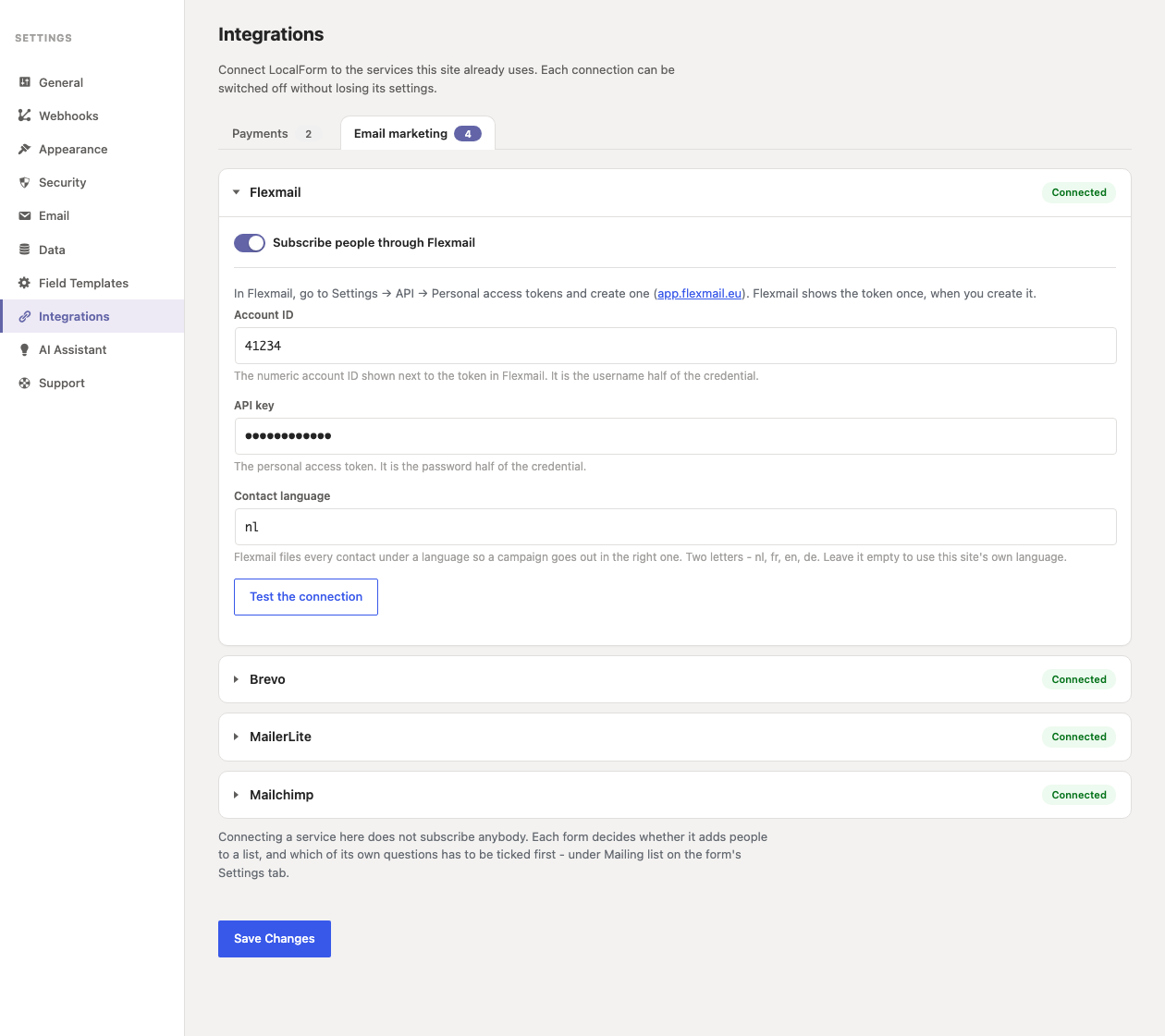
The check tells you more than whether the key works - it reports how many lists it can see. A key with the wrong permissions authenticates happily and then sees nothing, and Connected. 0 lists found. is how you catch that before a visitor does.
Flexmail
- In Flexmail, go to Settings → API → Personal access tokens and create a token. Flexmail shows it once.
- Paste the numeric Account ID shown beside it, and the token.
- Contact language is the two-letter code Flexmail files new contacts
under -
nl,fr,en,de. Leave it empty to use your site's own language. A Belgian account routinely has bothnlandfr, so it is worth a moment's thought.
Brevo
- Create a v3 API key under SMTP & API in your Brevo account.
- Leave Confirmation template ID empty to add people to the list straight away.
- Set it to the ID of one of your Brevo double opt-in templates and Brevo emails them a confirmation first, adding them only once they click.
MailerLite
Create an API token under Integrations → MailerLite API. It must be from
the current MailerLite (connect.mailerlite.com); a MailerLite Classic key
will not work.
Whether new subscribers have to confirm by email is a per-group setting in MailerLite itself, not here. LocalForm follows whatever you set there.
Mailchimp
Create an API key under Account → Extras → API keys. It ends in a data
centre, such as -us14, and that suffix is how this site knows which Mailchimp
server your account is on - a key without one is rejected before any request
leaves your site.
Ask new contacts to confirm by email is on by default. Mailchimp then emails a confirmation link and adds them only once they click it.
Setting up a form
Open a form, go to Settings, and find the Mailing list card.
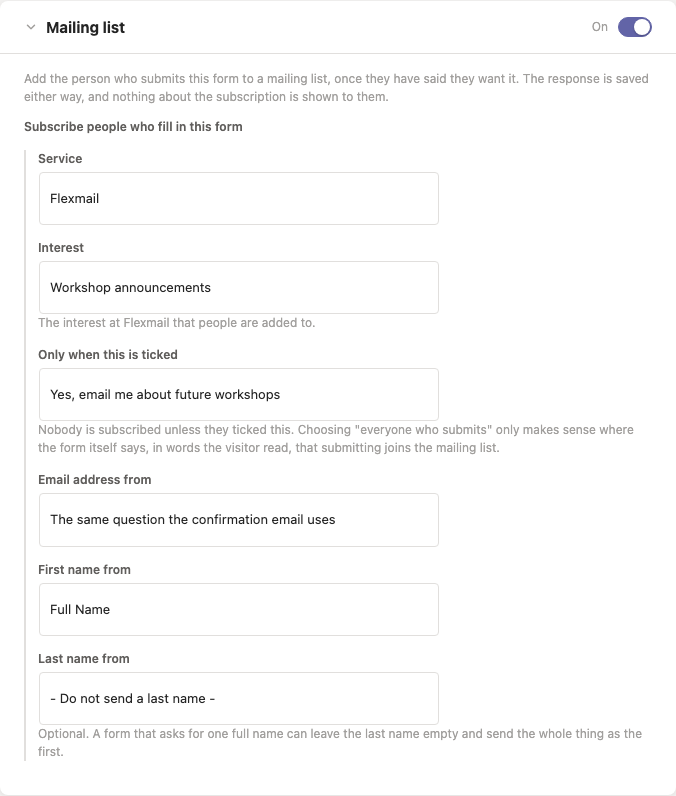
- Switch on Subscribe people who fill in this form.
- Pick the service (only shown when you have connected more than one).
- Pick the list - or interest, group or audience, depending on the service. The dropdown is read live from your account.
- Pick the question under Only when this is ticked.
- Check Email address from and the two name questions.
Only when this is ticked
This is the whole feature. It lists every tick box on the form - Consent questions, checkboxes and Pro's Yes / No field - and nobody is subscribed unless the person ticked the one you name.
A form that has none yet says so, and subscribes nobody until you add one. The usual shape is a Consent question reading something like Yes, email me the newsletter - and if you want to be thorough, with a link to your privacy policy in it.
There is one more option in the list, Subscribe everyone who submits. It does what it says, and it is only appropriate where the form itself told the visitor, in words they read, that submitting joins the mailing list. A newsletter sign-up page is a fair use of it. A contact form is not.
:::warning A gate that cannot be read is a gate that is shut If you name a consent question and later delete it from the form, nobody is subscribed - the form does not fall back to subscribing everybody. That is deliberate: deleting a tick box should never widen who gets emailed. :::
Email address from
Leave this on The same question the confirmation email uses and the address is resolved exactly as it is for the confirmation email - the question you named under Email Notifications, or the first email question on the form. One answer, one place, so a form cannot end up emailing one address and subscribing another.
Pick a specific question when the form asks for more than one address and the newsletter should go to a particular one.
First and last name
Both optional, and both mapped to whatever the service calls those fields
(FIRSTNAME/LASTNAME at Brevo, name/last_name at MailerLite,
FNAME/LNAME at Mailchimp, first_name/name at Flexmail).
A form that asks for one full name can leave the last name empty and send the whole thing as the first name. That is better than splitting it: not everybody's name divides into two halves in the order your form assumes.
What happens when somebody submits
- The response is saved, exactly as it always was.
- If the form subscribes, the gate is ticked and there is a usable address, the contact is sent - after the browser has already been answered.
- The visitor sees the normal thank-you message. Nothing about the subscription is shown to them, because it is not their problem.
Nobody is ever resurrected
Somebody who unsubscribed and later fills in your contact form has not
rejoined your newsletter. Every request LocalForm sends is written so that an
existing contact is updated - a new surname, a corrected first name - and never
re-subscribed. At Mailchimp that means only ever sending status_if_new, which
applies to a contact being created and is ignored for one that already exists.
When it fails
- Something that might pass next time - a timeout, a 502, a rate limit - is retried after a minute, then after five.
- Something that never will - a rejected key, a list that does not exist - is not retried, because the fourth attempt is as wrong as the first.
Either way the reason is recorded against that service, and you see it in two places: the card's summary on the Integrations screen reads Connected - last subscription failed, and the form's own Mailing list card shows the message. It clears itself as soon as a subscription works, or when you change the credential.
This is what catches the key that worked in March and was revoked in June. From a settings screen a revoked key looks exactly like a working one; the only evidence is a subscription that failed, so that is what the screen shows you.
Switching a service off
The switch on a card under Settings → Integrations stops that service being offered to any form and stops any new subscription through it, with your credentials left exactly where they are. Switch it back on and everything picks up where it left off.
Unlike a payment provider there is nothing in flight to protect, so off means off immediately - including for a retry that was already queued.
What this does not do
- No tags. All four services share the idea of a list; only Mailchimp shares the idea of a tag. Rather than fake it for the other three, LocalForm maps a form to one list and stops there.
- No unsubscribing. Deleting a form, or a response, does not remove anybody from your list. They are your service's contact now, and taking them off is a decision to make over there.
- No syncing back. LocalForm never reads your subscribers, and nothing about a contact's status comes back into WordPress.
See also
- Integrations - the screen every connection lives on.
- Field types - the Consent question this feature gates on.
- Send submissions to another system - the webhook, for everything a mailing list is not.